
Audit Events Streaming
Configure an Audit Events business webhook, inspect its payload, and recover from failed deliveries.
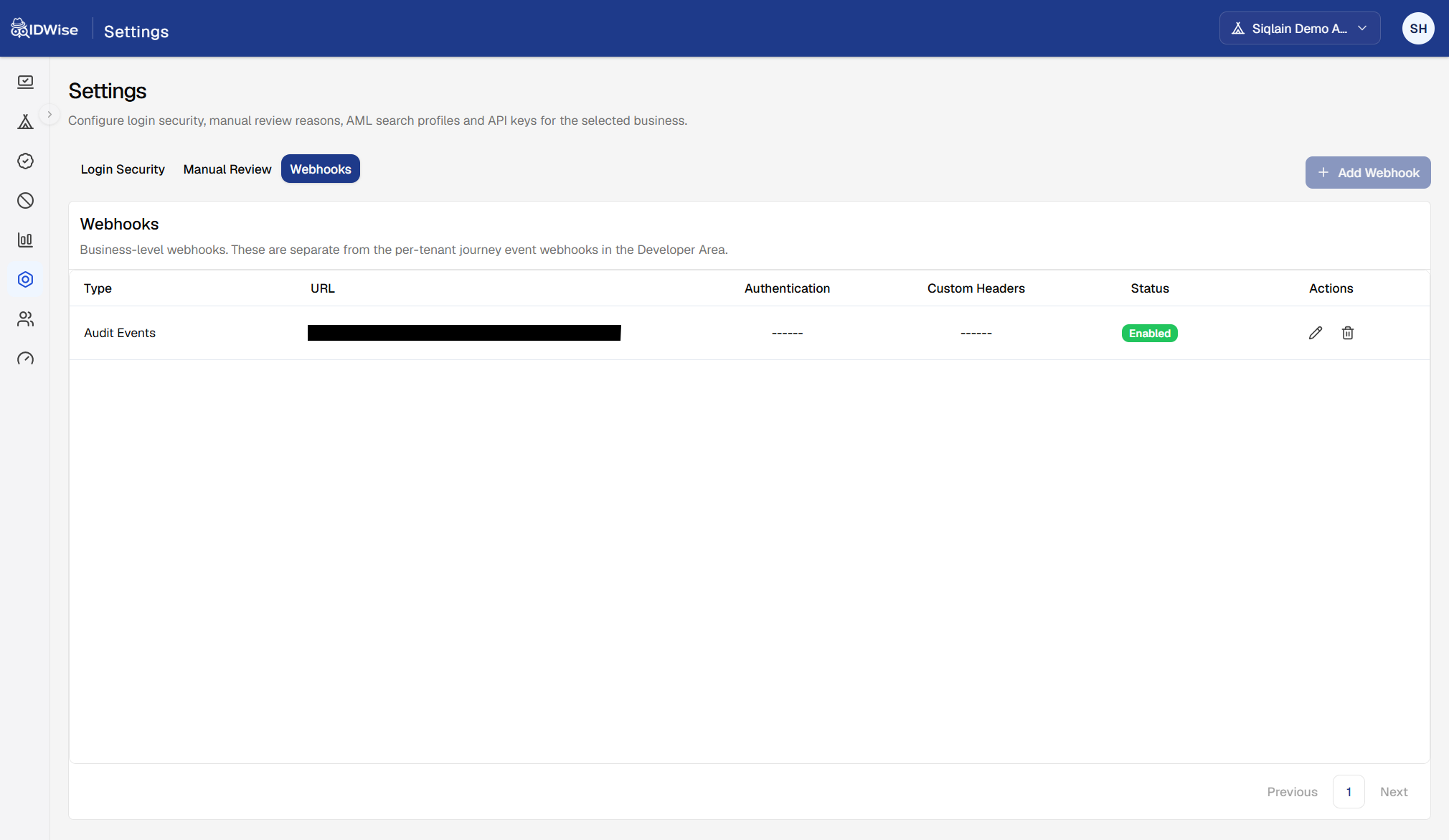
Send your business’s audit events to your own endpoint by configuring an Audit Events webhook in the IDWise Dashboard.
The webhook delivers JSON records for audit log actions across all your tenants, such as a setting changing or an API key being created. You can configure one Audit Events webhook per business under Settings → Webhooks. Events usually arrive a few minutes after they occur.
Prerequisites
- Ask an administrator to grant your user group the Manage Business Webhooks permission. See User Management for information about user groups.
- Set up an internet-accessible endpoint that accepts JSON
POSTrequests. Use HTTPS to protect the data in transit. Return a2xxresponse within 30 seconds; if processing takes longer, store the request before responding and process it afterwards. - Choose one or more email addresses to receive notifications if delivery is paused after repeated failures.
Configure the webhook
- Open Settings → Webhooks and select + Add a new webhook.
- Complete the General step and select Next.
- Complete the Authentication step and select Next.
- Send a request from the Test Delivery step, check the result, and select Save.
Use Back to revisit a step before saving.
1. General
Select Audit Events as the Webhook Type and configure the delivery settings:
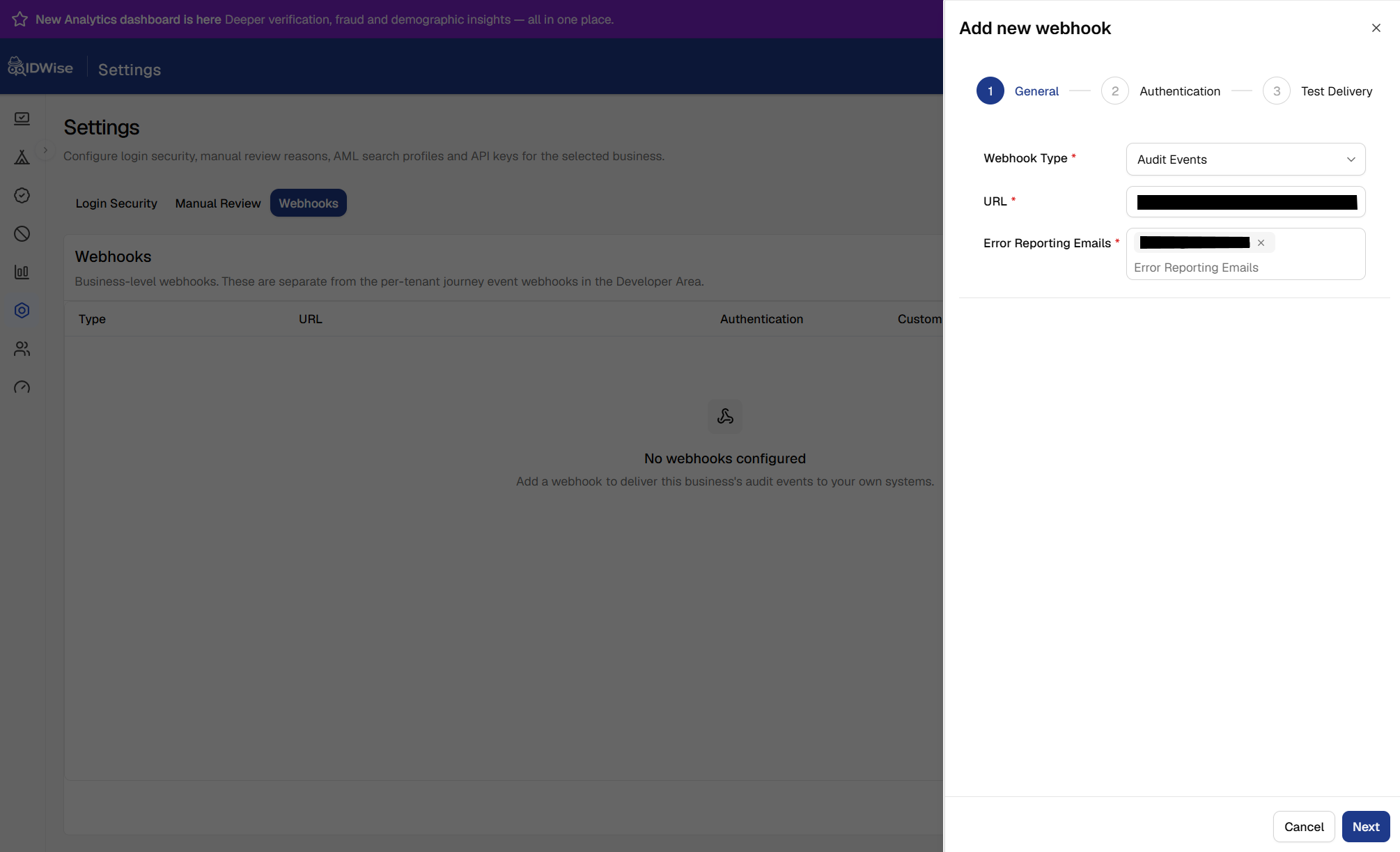
| Field | Value | Behavior |
|---|---|---|
| Webhook Type | Audit Events | Covers audit events across all your tenants. |
| URL | Your public endpoint, for example https://your-domain.com/webhooks/audit-events | Receives JSON POST requests. |
| Error Reporting Emails | One or more email addresses | Receives a notification if delivery is paused after repeated failures. |
IDWise collects new events about every 30 minutes and sends at most 500 events per request. If more events are waiting, IDWise sends several requests in sequence; if there are no new events, it sends nothing. This schedule and limit apply to all businesses and are not configurable per webhook.
2. Authentication
Choose how your endpoint authenticates requests:
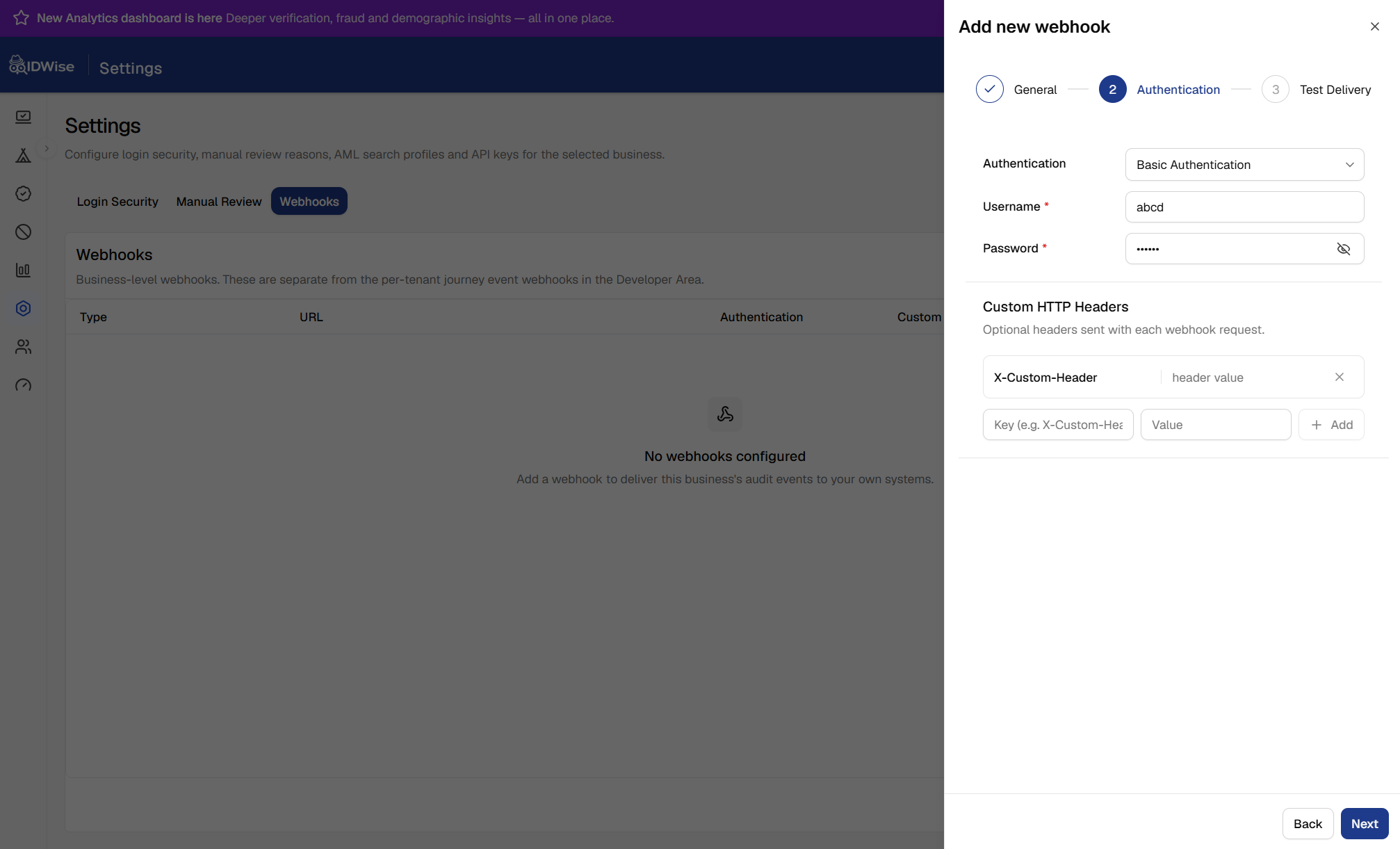
| Setting | Configuration | Behavior |
|---|---|---|
| No Authentication | Select this option if your endpoint does not require credentials. | Requests carry no authentication credentials. |
| Basic Authentication | Enter a Username and Password. | Requests include an Authorization: Basic … header. |
| Custom Headers | Add each required header as a key-value pair. | IDWise sends the headers with every request, including test deliveries. |
Use HTTPS if you send credentials in Basic Authentication or custom headers.
3. Test Delivery
Send a test request to your endpoint before saving. Inspect these results:
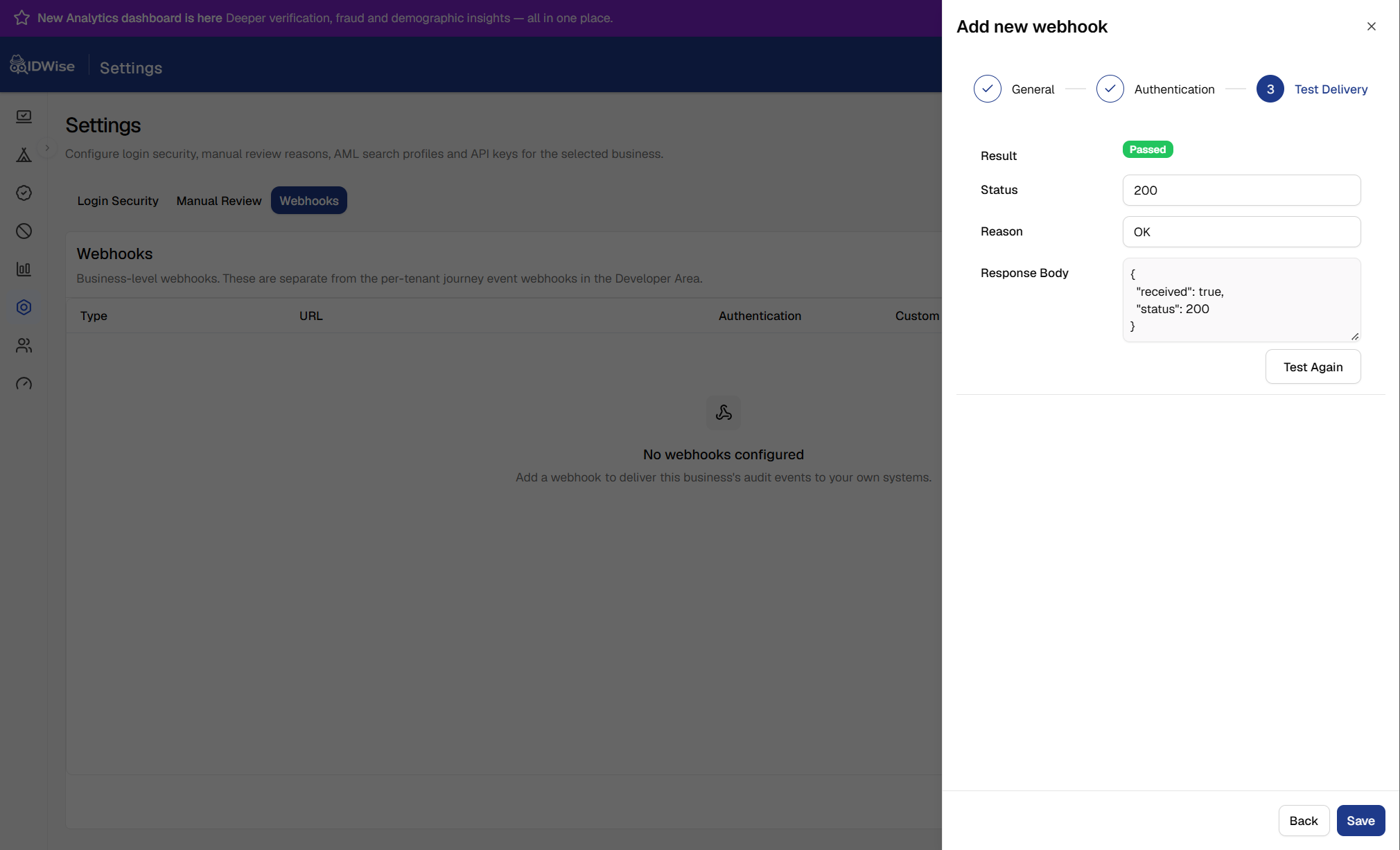
| Result field | What to check |
|---|---|
| Result | Whether your endpoint accepted the request. |
| Status | The HTTP status code your endpoint returned. |
| Reason | Why the test failed, such as a timeout or unreachable URL. |
| Response Body | The response your endpoint returned. |
The test request contains one sample audit log with made-up names and IDs and the operation Test Business Webhook. It uses the same payload format as a real delivery, so you can check your parser. The X-IDWise-Webhook-Test: true header distinguishes it from a real delivery. The test waits up to 15 seconds for a response.
The test uses the values currently entered in the form, so you can check a new URL or credentials before saving. When editing, the saved password is not shown or reused for the test; re-enter it to include it in the test request.
Select Save to finish, or Save changes when editing. Delivery starts from the webhook’s creation time; it does not send events from before it was created. Contact IDWise support if you need earlier events.
Handle incoming events
Each delivery is an HTTP POST with Content-Type: application/json. The webhook includes actions recorded in your business’s audit log across all tenants, For example, a delivery containing one audit event looks like this:
{
  "event": "AuditEvents",
  "body": {
    "eventId": "8dc1d2c0-aedc-4511-bcca-020d80d82985",
    "auditLogs": [
      {
        "auditLogId": "6abf4fb0c2d14e0a9b3f7e21",
        "dateTime": "2026-10-02T06:31:12.104000+00:00",
        "operation": "Search Journeys",
        "principalType": "user",
        "principalId": "c41f2b0e-6a1d-4c55-9a0e-3f2b8d1e7c90",
        "principalName": "Dashboard User",
        "principalEmail": "[email protected]",
        "resourceType": "environment",
        "resourceId": "5f1c2a77-0d3e-4b8a-9c41-7e2d6b0a1f33",
        "resourceTenantId": "T-5f1c2a77-0d3e-4b8a-9c41-7e2d6b0a1f33",
        "tenantName": "Retail",
        "resourceEnvironmentType": "live",
        "status": "Succeeded"
      }
    ]
  }
}
A successful endpoint response is any 2xx status returned within 30 seconds.
Payload fields
| Field | Description |
|---|---|
event | Always AuditEvents for this webhook. The {event, body} wrapper lets an endpoint route IDWise webhook types by event. |
body.eventId | Identifies the delivery request. A retry keeps the same eventId; use it to detect duplicates. |
body.auditLogs | Audit events in oldest-first order, up to 500 per request. |
body.auditLogs[].auditLogId | Unique ID of the audit record. |
body.auditLogs[].dateTime | When the action happened, in UTC (ISO 8601). |
body.auditLogs[].operation | Action shown in the dashboard audit log, such as Create Business Webhook. |
body.auditLogs[].principalType | Actor type: user, server_api_key, client_api_key, or business_api_key. |
body.auditLogs[].principalId | ID of the user or API key. |
body.auditLogs[].principalName | User’s name (or email if no name is set), or API key type, such as Server API Key. |
body.auditLogs[].principalEmail | User’s email, with (Inactive) added for a deactivated user. Empty for API keys. |
body.auditLogs[].resourceType | Type of item acted on, such as webhook, user, apiKey, or tenant. |
body.auditLogs[].resourceId | ID of the item acted on. |
body.auditLogs[].resourceTenantId | Tenant the item belongs to, when applicable. |
body.auditLogs[].tenantName | Name of that tenant. |
body.auditLogs[].resourceEnvironmentType | live or sandbox, when the item belongs to an environment. |
body.auditLogs[].status | Succeeded or Failed. |
Fields without a value are sent as null unless a field’s description specifies an empty value.
Order and duplicates
Events arrive in order:
- Oldest first: Events arrive in order across all your tenants.
- One request at a time: IDWise sends the next request only after your endpoint accepts the previous one.
Expect duplicates and skip them:
Delivery is at least once. If your endpoint accepts a request but its response does not reach IDWise, IDWise sends the same request again with the same eventId.
- Per request: Store the
eventIdvalues you have processed and skip repeats. - Per record: Deduplicate on
auditLogId.
Recover from failed deliveries
If your endpoint does not return a 2xx response within 30 seconds, IDWise retries the same request.
If multiple retry attempt fails, delivery is paused:
- IDWise sends one email titled “Your webhook handler is failing” to your Error Reporting Emails. It includes the webhook, last response, request
eventId, time range, and record count. - IDWise does not collect or send more events while delivery is paused, but no events are lost.
- Fix the endpoint or webhook settings, then contact IDWise support to resume delivery. Delivery restarts with the failed request and continues in order.
Editing the webhook does not resume paused delivery. You receive one email when delivery is paused, not one email per failed attempt.
Manage an existing webhook
Open Settings → Webhooks to manage your Audit Events webhook:
| Action | Effect |
|---|---|
| Edit | Changes the URL, credentials, headers, or emails. Changes apply to the next request, including a pending retry. The password is not shown again: leave it unchanged to keep it, or enter a new one. Re-enter the password if you want to include it in a test delivery before saving. Select Save changes when finished. |
| Disable | Pauses delivery. |
| Enable | Restarts delivery from that moment. Events from the disabled period and requests still waiting are not sent; contact IDWise support if you need them. |
| Delete | Stops delivery and removes the webhook. A replacement webhook starts from its creation time. |
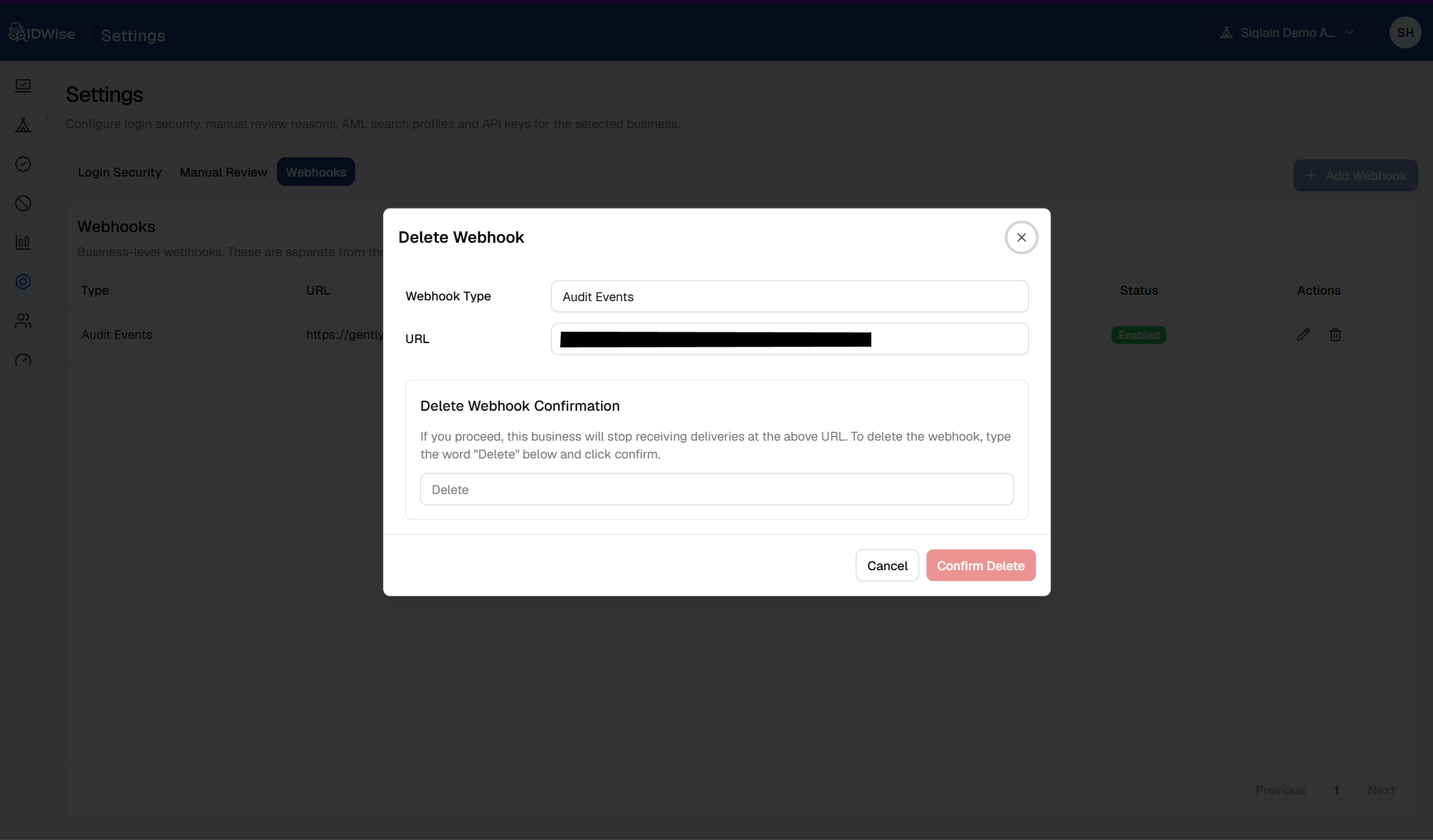
Disabled and paused after failures are different states. Re-enabling a disabled webhook skips events from the disabled period; resuming a webhook paused after failures continues from its failed request.
Best practices
- Return
2xxafter storing each delivery, then process it asynchronously if needed. - Store processed
eventIdvalues to prevent duplicate processing. - Use HTTPS and Basic Authentication or a secret custom header to protect your endpoint.
- Enter the exact
https://URL that your endpoint answers on; avoid a URL that redirects, such as fromhttp://tohttps://. - Run Test Delivery in the edit form before saving a changed URL, credentials, or headers. Re-enter the password if your test requires it.
- Keep Error Reporting Emails up to date so someone can respond to failures.
- Fix delivery failures instead of disabling the webhook if you need the events collected during that period.
Updated 20 days ago